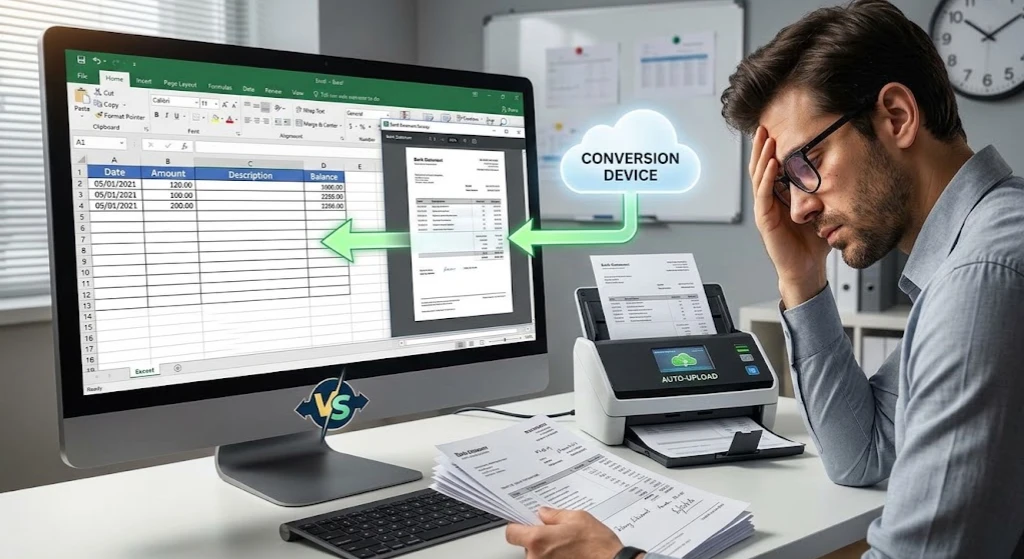
A tax preparer opens a folder from a client and finds a dozen photographs of paper bank statements taken with a phone camera. Some are slightly angled. A few have a thumb in the corner of the frame. There is no digital PDF anywhere in the batch, and the return is due in two weeks. This is the moment most people learn that a scanned bank statement behaves nothing like a digital one, and that figuring out how to convert a scanned bank statement to Excel data takes a different approach.
Why Scanned Statements Are Different From Digital PDFs
A digital PDF bank statement already contains text a computer can read. A scanned statement, whether from a flatbed scanner or a phone photo, is simply a picture. The numbers, dates, and descriptions on the page look like text to a human eye, but to software, the entire page is one image with no readable characters inside it.
This distinction matters because most basic PDF to Excel tools only work with text that already exists inside the file. When a scanned statement is dropped into one of those tools, the output is often blank, or it returns garbled characters that have nothing to do with the original transactions. Knowing how to convert scanned bank statement to Excel data starts with using a tool built specifically to read images, not just extract existing text.
Step by Step: How to Convert a Scanned Bank Statement to Excel
Step 1. Upload the Scanned File
Start by uploading the scanned statement, whether it is a PDF made from a scanner or an image file from a phone camera, into a converter designed for financial documents. The process to convert scanned PDF bank statement to Excel format is the same either way, since the platform treats both as images rather than as text files. Smart Bank Statement Converter accepts both formats directly, so there is no need to convert a photo into a PDF first.
Step 2. Let OCR Read the Document
Once uploaded, optical character recognition, or OCR, scans the image and converts the visible characters into machine-readable text. OCR for scanned bank statements works by analyzing the shapes on the page and matching them to letters and numbers, then reconstructing the layout of the original document. Image quality plays a large role here. A statement scanned at a low resolution or photographed at an angle gives the OCR engine less to work with, which can affect how cleanly the numbers come through.
Step 3. Detect the Transaction Table
After the text is recognized, the platform identifies which part of the page is the actual transaction table, separate from headers, footers, account disclosures, and marketing text. This step is where scanned bank statement data extraction becomes more than plain OCR. The system has to understand that a row starting with a date and ending with a dollar amount is a transaction, not a paragraph of legal text, even when the scan quality varies from page to page.
Step 4. Review the Extracted Data
Before downloading anything, take a moment to check the output against the original scan. Compare opening and closing balances, confirm that debit and credit amounts landed in the correct columns, and look for any row where a smudge or shadow on the original image might have caused a misread digit. This step takes a few minutes and catches most errors before they reach a spreadsheet.
Step 5. Download as Excel or CSV
Once the data looks correct, export the file as an Excel spreadsheet or CSV. At this point, the image-based bank statement to spreadsheet conversion is complete, and the file is ready for reconciliation, reporting, or import into accounting software.
What Makes OCR Accurate on Scanned Statements
OCR quality is the deciding factor in how to convert a scanned bank statement to Excel data accurately, since not all OCR performs the same way on financial documents. Basic OCR tools are built to recognize general text and often struggle with the tight columns and small print common on bank statements. A converter designed for this specific use case combines OCR with financial context, so it recognizes that a number in parentheses is a negative amount rather than a typo, and that a repeated header partway down the page is not a new transaction.
Resolution and lighting still matter. A statement scanned flat at 300 dpi or higher, with even lighting and no glare, gives even a strong OCR engine a cleaner starting point. A blurry photo taken in dim light will always be harder to process than a clean scan, no matter how advanced the underlying technology is.
Choosing the Right Tool for Scanned Bank Statement Conversion
Choosing the right tool matters just as much as knowing how to convert a scanned bank statement to Excel in the first place. When comparing options, look past marketing claims and focus on a few practical questions. Does the tool support both image files and scanned PDFs? Does it recognize multiple bank layouts without requiring a template? Does it flag balance mismatches instead of silently producing incorrect totals?
Some of the best tools for scanned document conversion combine several capabilities at once, including OCR, AI-based layout detection, and validation checks that confirm opening balance plus deposits minus withdrawals equals the closing balance. Smart Bank Statement Converter’s features outline how these components work together for both scanned and digital statements, along with the security measures applied to uploaded files.
Common Problems When Converting Scanned Statements
A few issues come up more often with scanned documents than with digital ones. Faint printer ink can cause missing decimal points. Folded or creased paper can break a row of numbers across two lines. Statements photographed at an angle can shift columns just enough to misalign a date with the wrong transaction. Reviewing the output before download, as described in Step 4, catches nearly all of these problems before they turn into a reconciliation headache later.
Conclusion
Learning how to convert scanned bank statements to Excel data comes down to using a tool that treats the file as an image first and a spreadsheet second. Once OCR reads the page and the transaction table is correctly identified, the rest of the process looks almost identical to converting a digital PDF. A folder of phone photos and old paper statements can become a clean, usable spreadsheet in the time it once took to find a working scanner. Smart Bank Statement Converter was built for exactly that gap between a shoebox of paper and a spreadsheet someone can actually work with.
Frequently Asked Questions
Can a scanned bank statement be converted to Excel?
Yes. A converter that uses OCR can read the image, recognize the transaction table, and export the data into Excel or CSV format.
Why is converting a scanned statement harder than a digital PDF?
A digital PDF already contains readable text, while a scanned statement is an image with no text layer, so OCR has to recognize each character before any data can be extracted.
What makes OCR accurate on scanned bank statements?
Accuracy depends on combining OCR with financial context, so the system understands transaction structure, along with the scan quality of the original document.
Do I need special software to convert scanned statements?
Yes. Generic PDF to Excel tools usually cannot read images, so a converter built to handle both digital and scanned bank statements works significantly better.
Will formatting stay accurate when converting a scanned statement?
A well-built converter preserves columns for date, description, and amount, though reviewing the output against the original scan is still worth the extra couple of minutes.