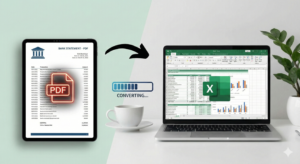
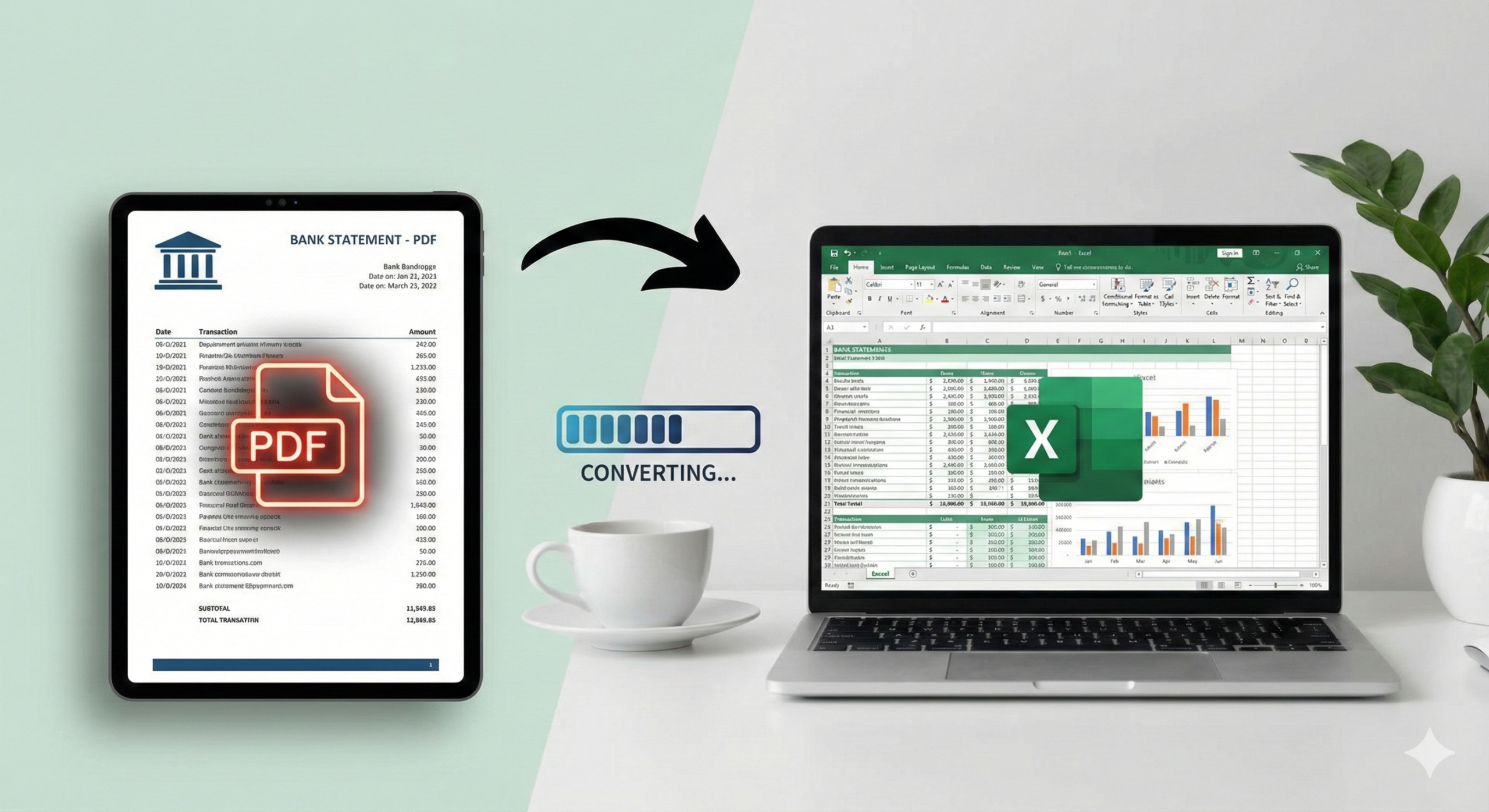
Bank statements are designed for reading, not analysis. Yet every month, finance teams download PDF statements and need them in Excel immediately. The assumption is simple: export, convert, reconcile. The reality is different.
Columns shift. Transactions are split across rows. Totals don’t match. A file that looked clean inside a PDF becomes messy the moment it opens in Excel.
Here’s the uncomfortable truth: converting a bank statement PDF to Excel isn’t difficult; converting it accurately is.
A small bookkeeping firm recently processed statements from five different banks. They used a basic converter and thought the job would take minutes. During reconciliation, they discovered missing transactions caused by page breaks. Fixing the issue took longer than manual entry would have.
This blog post explains how to convert a bank statement PDF to Excel properly, what causes common errors, and how automated tools like Smart Bank Statement Converter eliminate manual cleanup.
Why Converting Bank Statement PDFs Is Challenging
PDF files preserve visual layout, not structured data. Tables inside a PDF are essentially arranged text blocks, not spreadsheet-ready cells.
When you try to extract bank statement data from PDF files using basic tools, several issues can occur:
- Columns misalign during export
- Transactions break across pages
- Debit and credit values merge
- Headers repeat mid-table
- Scanned statements fail completely
This is why many free tools produce messy Excel outputs that require manual correction. Understanding this limitation is the first step toward accurate conversion.
Step-by-Step: How to Convert Bank Statement PDF to Excel
Here is the correct approach when converting statements for financial use.
1. Identify the Type of PDF
Before conversion, determine whether the statement is:
- A digital (text-based) PDF
- A scanned or image-based PDF
Digital files are easier to process. Scanned files require OCR (optical character recognition) to read the text before structuring it.
2. Use a Dedicated PDF Bank Statement to Excel Converter
Generic PDF tools are not built for financial tables. A dedicated PDF bank statement to Excel converter understands transaction layouts, column patterns, and balance sequences.
With Smart Bank Statement Converter, the process is simple:
- Upload the bank statement PDF
- The system detects the table structure
- Transaction data is extracted automatically
- A clean Excel file is generated
3. Verify Transaction Structure
After conversion, quickly review:
- Opening and closing balances
- Transaction order
- Debit and credit placement
- Date formatting
Advanced AI bank statement PDF to Excel systems preserve structure automatically, but a quick verification ensures accuracy before reconciliation.
4. Download and Use in Excel
Once structured correctly, the Excel file allows you to:
- Sort by date or amount
- Filter transactions
- Run formulas
- Import into accounting systems
Converting Scanned Bank Statement PDFs to Excel
Scanned files present a unique challenge. Because they are image-based, text must be recognized before extraction.
To convert scanned bank statement PDF to Excel accurately, the system must:
- Use intelligent OCR
- Detect table boundaries
- Recognize currency formats
- Preserve transaction order
Basic OCR tools often misread numbers, drop decimal points, or skip lines entirely. This is why automated bank statement conversion tools built specifically for financial documents perform better than general OCR software.
Smart Bank Statement Converter applies AI-driven OCR designed for complex financial tables, reducing recognition errors significantly.
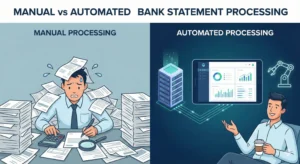
Manual vs Automated Bank Statement Conversion
Manual conversion involves copying transactions into Excel, adjusting columns, and verifying totals. While possible, it becomes risky as volume increases.
Automated bank statement conversion eliminates repetitive tasks and reduces error rates by:
- Maintaining column integrity
- Preserving transaction sequence
- Handling multi-page statements
- Adapting to different bank formats
Using an Online Bank Statement PDF to Excel Converter
Many users search for a bank statement PDF to Excel online solution because they need speed and convenience.
When choosing an online converter, ensure it offers:
- Secure file handling
- Support for multiple banks
- Accurate OCR for scanned files
- Structured Excel output
- No template limitations
Smart Bank Statement Converter processes files securely and delivers structured Excel outputs ready for analysis without additional cleanup.
How AI Improves Bank Statement PDF to Excel Conversion
AI bank statement PDF to Excel systems go beyond simple text recognition. They analyze layout, detect financial patterns, and validate transaction logic.
Advanced AI helps by:
- Differentiating balances from transaction amounts
- Recognizing debit and credit columns
- Adjusting to layout variations across banks
- Handling new or changing statement formats
Accuracy comes from combining OCR, layout detection, and financial context awareness, not just text extraction.
Common Mistakes to Avoid During Conversion
When converting bank statements, avoid:
- Using generic PDF converters
- Ignoring page breaks
- Skipping balance verification
- Relying solely on visual inspection
- Uploading low-resolution scanned files
These mistakes often lead to hidden discrepancies that surface later.
Benefits of Using Smart Bank Statement Converter
Smart Bank Statement Converter is built specifically for financial workflows. It helps users:
- Extract bank statement data from PDF accurately
- Convert scanned bank statement PDF to Excel
- Process multi-page and multi-bank files
- Maintain transaction order
- Export clean Excel or CSV files instantly
Instead of fixing spreadsheets after conversion, users receive data that works immediately.
Conclusion
Learning how to convert bank statement PDF to Excel properly is less about finding a tool and more about choosing the right system.
Basic converters focus on text extraction. Financial workflows require structured accuracy. The difference becomes visible during reconciliation, reporting, and audits.
For teams handling recurring bank statements, automated and AI-driven conversion is no longer optional. It’s the practical way to reduce errors, save time, and maintain confidence in financial data.
Explore now at https://smartbankstatementconverter.com/
Frequently Asked Questions
How can I convert a bank statement PDF to Excel accurately?
Use a dedicated bank statement PDF to Excel converter that recognizes financial table structures, preserves transaction order, and supports scanned PDFs with intelligent OCR.
What is the best AI tool to convert bank statement PDF to Excel?
The best tools combine OCR, layout detection, and financial logic. Smart Bank Statement Converter is designed specifically for accurate AI-based bank statement conversion.
Can I convert scanned bank statement PDFs to Excel automatically?
Yes. Advanced tools use AI-driven OCR to read scanned statements and convert them into structured Excel files automatically.
Is there an online PDF bank statement to Excel converter?
Yes. Smart Bank Statement Converter provides a secure online solution for converting digital and scanned bank statements into Excel.
How do I extract transactions from a PDF bank statement into Excel?
Upload the PDF to a specialized converter, allow the system to extract transaction data automatically, and download the structured Excel output.
Does PDF to Excel conversion work for all banks’ statements?
A high-quality converter supports multiple banks and adapts to varying layouts. Template-based tools may struggle when formats change.
How accurate is AI-based bank statement PDF to Excel conversion?
Accuracy depends on the system’s ability to combine OCR, layout recognition, and financial validation. Advanced AI-based tools significantly reduce errors compared to manual or basic automated methods.